AWS Byte #2: Dockerize Your React.js Application
This is part of the AWS Architecture Bytes series.
Problem
You have a React.js application and you want to containerize it using Docker and deploy it on AWS. It should be scalable, easy to update, and production-ready.
Your turn
Before reading the solution — try to think about:
- How would you write a Dockerfile for a React app?
- Where would you store your Docker images on AWS?
- Which AWS service would you use to run your containers?
- How would you handle scaling — what happens when traffic increases?
- How would you route traffic to your containers?
- How would you handle environment variables for dev and prod?
- How would you set up health checks?
- How will you debug a Docker issue?
- How will you route to your domain?
Solution
Pre-requisites
| What | Why |
|---|---|
| AWS Account | An active account with billing enabled (root or IAM user) |
| Domain name | A registered domain with access to DNS settings |
| React.js app | A working React app with npm run build producing static output |
| Docker | Docker Desktop installed locally for building and testing images |
| AWS CLI | For pushing images and managing services from your terminal |
| GitHub | Code hosted on GitHub for CI/CD pipeline integration |
Services
| Service | Why |
|---|---|
| ECR (Elastic Container Registry) | Store and version your Docker images |
| ECS (Elastic Container Service) | Run and manage your containers |
| Fargate | Serverless compute for ECS — no EC2 instances to manage |
| ALB (Application Load Balancer) | Route traffic to containers, handle HTTPS termination |
| ACM (Certificate Manager) | Free SSL/TLS certificate for your domain |
| Route 53 | DNS management, point your domain to the ALB |
| CodePipeline + CodeBuild | Automate build, push, and deploy on every push |
| CloudWatch | Container logs, metrics, and alarms |
| IAM | Roles for ECS task execution, ECR access, and CI/CD permissions |
HLD
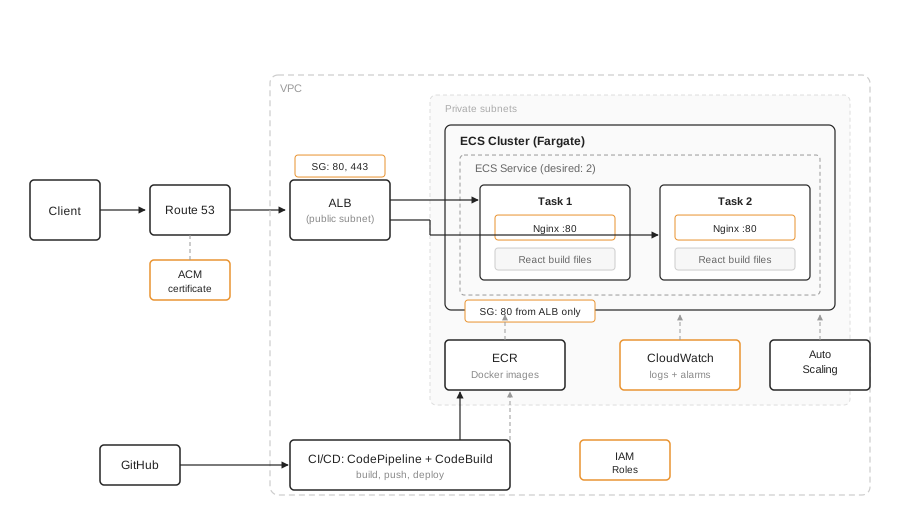
Steps
Step 1: Write a Dockerfile for your React app
Use a multi-stage build — the first stage builds the app, the second stage serves it with Nginx. This keeps your final image small (no node_modules in production).
# Stage 1: Build
FROM node:20-alpine AS build
WORKDIR /app
COPY package*.json ./
RUN npm ci
COPY . .
RUN npm run build

# Stage 2: Serve with Nginx
FROM nginx:alpine
COPY --from=build /app/build /usr/share/nginx/html
COPY nginx.conf /etc/nginx/conf.d/default.conf
EXPOSE 80
CMD ["nginx", "-g", "daemon off;"]
Create nginx.conf in your project root to handle client-side routing:
server {
    listen 80;
    server_name _;
    root /usr/share/nginx/html;
    index index.html;

    location / {
        try_files $uri $uri/ /index.html;
    }

    location /health {
        access_log off;
        default_type text/plain;
        return 200 'ok';
    }
}
The /health endpoint is important — ALB will use it to check if your container is healthy.
Also create a .dockerignore file to keep your image lean and avoid copying unnecessary files:
node_modules
build
.git
.env
*.md
This prevents node_modules and other local files from being sent to the Docker daemon during build — speeding up builds and reducing image size.
Step 2: Build and test locally
# Build the image
docker build -t my-react-app .

# Run locally to test
docker run -p 3000:80 my-react-app

# Open http://localhost:3000 — verify the app works
Step 3: Create ECR repository
- Create one ECR repository per environment:
dev-my-react-app,staging-my-react-app,prod-my-react-app - Enable image scanning on push to catch vulnerabilities
- Set a lifecycle policy to keep only the last 10 images (avoids storage costs)
# Create repo
aws ecr create-repository --repository-name prod-my-react-app --region eu-west-2

# Login to ECR
aws ecr get-login-password --region eu-west-2 | docker login --username AWS --password-stdin <ACCOUNT_ID>.dkr.ecr.eu-west-2.amazonaws.com

# Tag and push
docker tag my-react-app:latest <ACCOUNT_ID>.dkr.ecr.eu-west-2.amazonaws.com/prod-my-react-app:latest
docker push <ACCOUNT_ID>.dkr.ecr.eu-west-2.amazonaws.com/prod-my-react-app:latest
Step 4: Set up ECS with Fargate
- Create an ECS cluster (choose Fargate, not EC2)
- Create a task definition — this describes how your container runs:
- Container image: your ECR image URI
- Port mapping: container port
80 - CPU:
256(0.25 vCPU) — sufficient for a static React app - Memory:
512MB - Log driver:
awslogs(sends container logs to CloudWatch)
- Network configuration:
- Use a VPC with at least 2 public subnets across different AZs (for ALB) and 2 private subnets (for ECS tasks)
- Place ECS tasks in private subnets with a NAT gateway for outbound access (pulling images, etc.)
- Create a security group for ECS tasks — allow inbound on port
80only from the ALB security group (not from0.0.0.0/0)
- Create a service within the cluster:
- Launch type: Fargate
- Desired count:
2(for high availability) - Assign the ECS task security group and private subnets
Step 5: Request SSL certificate (ACM)
- Request a certificate for your domain (
app.example.com) in the same region as your ALB (unlike CloudFront, ALB certificates must be in the ALB's region) - Use a wildcard certificate (
*.example.com) to cover all environments - Validate via DNS — add the CNAME record ACM provides in Route 53
- You'll attach this certificate to the ALB's HTTPS listener in the next step
Step 6: Set up Application Load Balancer (ALB)
- Create an ALB in the public subnets of the same VPC as your ECS service
- Create a security group for the ALB — allow inbound on ports
80and443from0.0.0.0/0 - Create a target group with target type
ip(required for Fargate) - Configure health check path:
/health(the Nginx endpoint from Step 1) - Set health check interval: 30 seconds, healthy threshold: 2, unhealthy threshold: 3
- Add listeners:
- HTTP (port 80) → redirect to HTTPS
- HTTPS (port 443) → forward to target group
- Attach ACM certificate to the HTTPS listener
- Register the ECS service with the target group (ECS does this automatically when you link the service to the ALB)
Step 7: Configure Route 53
- Create an A record (alias) pointing your domain to the ALB:
app.example.com→ prod ALBdev.app.example.com→ dev ALBstaging.app.example.com→ staging ALB
Step 8: Handle environment variables
React apps bake environment variables at build time (REACT_APP_* prefix). You can't inject them at runtime. There are two approaches:
| Approach | How |
|---|---|
| Build-time injection | Pass --build-arg in your Dockerfile and use ARG + ENV. Each environment gets its own build. |
| Runtime config file | Serve a config.js file from Nginx that the app reads at startup. Update this file per environment without rebuilding. |
For build-time injection, update your Dockerfile:
FROM node:20-alpine AS build
WORKDIR /app
ARG REACT_APP_API_URL
ENV REACT_APP_API_URL=$REACT_APP_API_URL
COPY package*.json ./
RUN npm ci
COPY . .
RUN npm run build
Then build with:
docker build --build-arg REACT_APP_API_URL=https://api.example.com -t my-react-app .
Step 9: Set up auto-scaling
- Create an Application Auto Scaling target for your ECS service
- Scale based on CPU utilization or request count per target:
- Scale out: add tasks when CPU > 70%
- Scale in: remove tasks when CPU < 30%
- Set minimum tasks:
2, maximum tasks:10 - The ALB automatically distributes traffic to new tasks as they come up
Step 10: Set up CI/CD with CodePipeline
- Source: GitHub repo (trigger on push to branch)
- Build (CodeBuild):
- Build Docker image with environment-specific build args
- Push to the correct ECR repository
- Generate
imagedefinitions.jsonfor ECS deploy
- Deploy: ECS deploy action — updates the service with the new image
- Each environment gets its own pipeline triggered by its branch (
dev,staging,main)
Sample buildspec.yml:
version: 0.2
phases:
  pre_build:
    commands:
      - aws ecr get-login-password --region $AWS_DEFAULT_REGION | docker login --username AWS --password-stdin $AWS_ACCOUNT_ID.dkr.ecr.$AWS_DEFAULT_REGION.amazonaws.com
  build:
    commands:
      - docker build --build-arg REACT_APP_API_URL=$API_URL -t $ECR_REPO_URI:$CODEBUILD_RESOLVED_SOURCE_VERSION .
      - docker tag $ECR_REPO_URI:$CODEBUILD_RESOLVED_SOURCE_VERSION $ECR_REPO_URI:latest
  post_build:
    commands:
      - docker push $ECR_REPO_URI:$CODEBUILD_RESOLVED_SOURCE_VERSION
      - docker push $ECR_REPO_URI:latest
      - printf '[{"name":"my-react-app","imageUri":"%s"}]' $ECR_REPO_URI:$CODEBUILD_RESOLVED_SOURCE_VERSION > imagedefinitions.json
artifacts:
  files: imagedefinitions.json
Step 11: Set up rollback strategy
- Enable the ECS deployment circuit breaker with rollback — if new tasks fail to stabilize, ECS automatically rolls back to the last working version
- For production, consider blue/green deployments using CodeDeploy with ECS:
- Deploys to a new target group, shifts traffic gradually, and rolls back if health checks fail
- Requires two target groups on your ALB
- Tag every ECR image with the git commit SHA (not just
latest) — this makes it easy to roll back to a specific version by updating the task definition
Step 12: Set up monitoring (CloudWatch)
- Container logs are automatically sent to CloudWatch via the
awslogsdriver - Create alarms for:
- ALB 5xx error rate > 1%
- ECS task count drops below desired count (tasks crashing)
- CPU utilization consistently high (might need to scale)
- Target group unhealthy host count > 0
- Set up an SNS topic for notifications
Multi env setup
Each environment gets its own stack:
| Dev | Staging | Prod | |
|---|---|---|---|
| ECR repo | dev-my-react-app |
staging-my-react-app |
prod-my-react-app |
| ECS cluster | shared or separate | shared or separate | separate (recommended) |
| Task count | 1 |
1 |
2+ (with auto-scaling) |
| ALB | shared (path-based) or separate | shared or separate | separate |
| Domain | dev.app.example.com |
staging.app.example.com |
app.example.com |
| Pipeline trigger | push to dev |
push to staging |
push to main |
| Auto-scaling | off | off | on |
- Shared vs separate ALB: A shared ALB with path-based or host-based routing saves cost (~$16/month per ALB) but means dev/staging share infrastructure with prod. For production, use a separate ALB to isolate traffic and avoid accidental routing issues.
- Each environment should have its own security groups and IAM roles — dev pipeline should never touch prod resources
Debugging Docker issues
| Issue | How to debug |
|---|---|
| Container won't start | Check CloudWatch logs for the task. Run docker run locally to reproduce. |
| Health check failing | SSH into the container or test /health locally. Check ALB target group health status. |
| Image too large | Use multi-stage builds. Check docker images for size. Use alpine base images. |
| Build fails in CodeBuild | Check CodeBuild logs. Run the same buildspec commands locally. |
| App works locally, fails on ECS | Check environment variables, network config (security groups, VPC). ECS tasks need outbound internet access to pull images. |
| Container keeps restarting | Check ECS events tab. Look at task stopped reason. Usually OOM (increase memory) or health check failure. |
Cost consideration
A React app built with npm run build produces static files — you could also host these with S3 + CloudFront (see Byte #1). The Docker + ECS approach makes more sense when:
- Your container does more than serve static files (e.g., SSR with Next.js, or a backend API bundled together)
- You need consistent container-based infrastructure across your services
- You want a single deployment pattern for frontend and backend
If you're only serving static files, S3 + CloudFront will be significantly cheaper than running Fargate tasks 24/7.
Gotchas
- Fargate tasks in public subnets need
Assign public IP: ENABLED— without it, they can't pull images from ECR - If using private subnets, you need a NAT gateway or VPC endpoints for ECR, S3, and CloudWatch
- ALB health checks and ECS health checks are different — ALB checks the
/healthendpoint, ECS checks if the container process is running. Configure both. - ECR images are region-specific — if your ECS cluster is in
eu-west-2, your ECR repo must be ineu-west-2too (or use cross-region replication) - Docker layer caching in CodeBuild is not enabled by default — enable it to speed up builds
REACT_APP_*env vars are baked at build time — changing them requires a new Docker build, not just a restart